
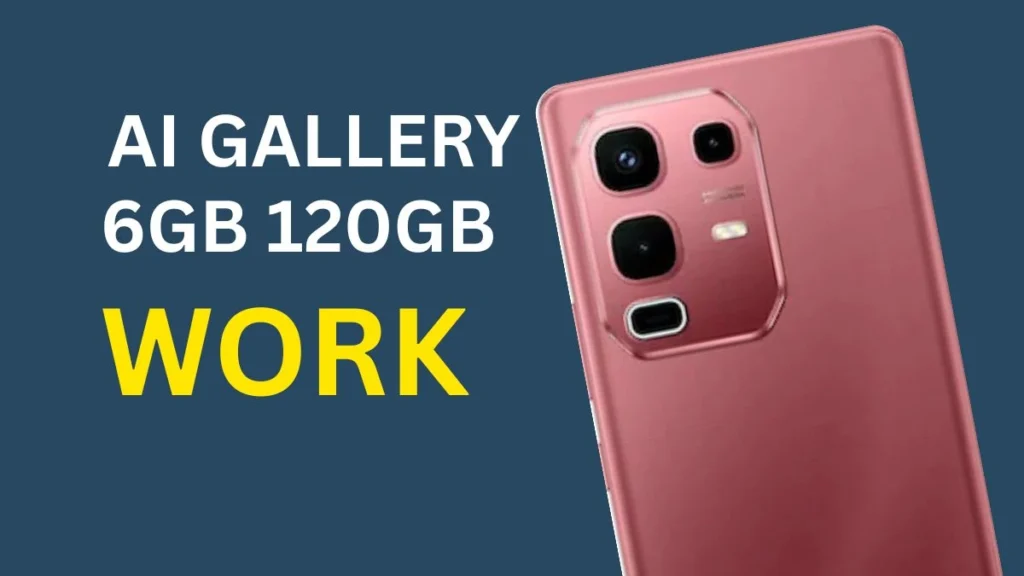
In recent year smartphone have evolved far beyond just calling and messaging device today. Artificial intelligent (AI) play a major roll ine enhance User experience, especially in Camera and Gallery feature, infinix known for offering feature packed smartphone at affordable price is take a big step forward with its latest device infinix note 50s.
One of the most talked about feature of the infinix note 50s is its AI gallery and AI photo Eraser. These smart tool allow user to manage enhance and edit photo effortlessly without needing third party app.
In this detailed guide, we will explain what ai gallery and AI photo eraser are how they work, and how you can enable and use them on the infinix note 5 Smartphone. This article is written ine simple English with a human touch making it easy to understand even for non technical user.
What is AI gallery in infinix Note 50s?
The AI gallery is a intelligent photo management system power by artificial intelligent. Unlike a traditional gallery app the only story image and video AI gallery understand your photo and optimise them smartly,
Introduction to infinix Note 50 AI features
To shutdown features include:
- AI gallery in enhancements
- AI photo eraser (objective remove tools)
these tools help users remove unwanted objects, enhance lighting, improve clarity, and optimization Protraits with just a few taps.
What is AI gallery on infinix Note 50s?
AI gallery is an upgraded photo management and editing system powered by artificial intelligence. It automatically analyse image and suggested improvement such as.
- Brightness and contrast correction
- Face enhancement
- Background optimization
- Noise reduction
- Scene detection
Instead of manual adjusting every setting the AI automatically detect areas that need improvement and enhance them instantly.
What is AI photo eraser?
AI Photo eraser is an intelligent object removal tool built . Into the gallery app. It allows users to:
- Remove unwanted people for the background
- Erase object like poles, wires, vehicles, to Trash
- Clean up photobombers
- Remove watermark (where legally permitted)
- Improve travel and portrait photo
The AI automatically file the erased area using surrounding pixel making the feel result looked natural.
How to enable AI gallery on infinix Note 50s
In most cases, AI features are enable by default. However, if your need to activity them manually, follow these steps:
Step 1: open the gallery app
- Go to your home screen.
- Tap on gallery.
Step 2: open setting
- Tape the three-dot menu (top right corner).
- Select setting
Step 3: enable AI features
- Look for option like:
- AI enhancement
- Smart photo optimization
- AI suggestions
- Toggle them on.
Step 4: upgrade the system (if required)
If you don’t see AI feature:
- Go to setting > software update
- Install the latest system update.
After enabling, the AI will automatically start analyzing and in hands your photos,
How to use AI Gallery smart enhancement
Using AI enhancement is very simple:
1 open a photo
- Launch gallery.
- Select the photo you want to edit.
2. Tape edit
- Press the edit icon (usually a pencil symbol).
3. Choose AI in hands
- Tap on AI enhance or Auto enhance.
- Wet 2-5 second while AI processing the image.
4. Compress before and after
- Tape and hold the image to see the original version.
- If satisfied, tab save.
The AI automatically adjust lighting, sharpness, and Colors for a balanced look,
How to use AI photo eraser on infinix Note 50 s
The AI photo eraser is one of the most powerful tool in the gallery app. here’s how to use if properly:
Step 1: open gallery
- Select the image you want to edit.
Step 2: Tap edit
- Click the edit option.
Step 3 select AI eraser / objective remove
- Look for option such US:
- AI Eraser
- Objective remove
- Magic Eraser
Step 4: highlighting the object
- Use your finger to draw over the object or person you want to remove.
- Zoom in for better accuracy.
Step 5: lat AI process
- Tap remove.
- Wait for AI to analyse and feel the area.
Step 6: save the image
- Once satisfies, tap save.
The erased area will blend naturally with the background.
Pro tips for best AI photo eraser result
To get professional-quality edit, follow these tips,
1. Using high-resolution photo
Better image quality gives better AI result,
2. Remove a small object first
AI performs best when removing smaller or simpler objects.
3. Zoom in for precision
Zooming helps you accurately highlight the unwanted area.
4. Avoid Complex backgrounds
Very detailed or crowded backgrounds my required multiple attempt.
5. Use good lighting
AI perform better on will-lit- images.
Common problem & solutions
AI eraser not working?
Solution:
- Restart your phone
- Update the gallery app.
- Clean gallery app cache:
- Setting > App > gallery > storage > clear cache
AI feature missing ?
Solution:
- Check for system update.
- In sure your region supported AI features.
- Reset a preference.
Bloody output after erasing?
Solution:
- Try erasing smaller sections,
- Avoid repooving very large object in one go.
Benefits of using AI gallery and AI photo eraser
Here’s why these feature are useful:
1. No third party app required
You don’t need app like Photoshop or Snapseed.
2. Time-saving
Edit that normally like 10 minute can be done in second.
3. Beginner-friendly
No editing skill required.
4. Professional results
AI products clean and natural-look edits
5. Smart skin recognition
Automatically detect portrait, landscape, night shorts, etc.
AI gallery versus third-party rating app
| Feature | Ai Gallery | Third-party apps |
|---|---|---|
| Build-in | Yes | No |
| Easy to use | Very easy | Moderate |
| AI powered | Yes | Depends |
| Free | Yes | Some Paid |
| Ads | No | Often Yes |
The build in Ai solutions-offers convincing the efficiency without extend downloads.
If the Infinix Note 50s doesn’t have the photo eraser, do this.
1. File a complaint with the National Consumer Helpline (NCH)
Before going to court, first file your complaint with the government helpline. This department helps facilitate settlements between consumers and companies.
Phone: Call the toll-free number 1800-11-4000 or 1915.
2. Complain to the CCPA (Central Consumer Protection Authority)
The CCPA has the power to investigate and impose penalties for “misleading advertisements.” If the company hasn’t clarified that the 6GB variant won’t have AI features, you can report it through the E-Daakhil Portal.
3. File a case with the Consumer Court (Consumer Commission)
If the company doesn’t resolve the issue through the helpline, you can file a case with the District Consumer Disputes Redressal Commission.
Aadhaar: You can seek compensation based on “Deficiency in Service.”
E-Daakhil: You can file a case online from home using the E-Daakhil portal. Initially, there’s no need for a lawyer.
4. Gather the necessary evidence
Have the following ready to strengthen your case:
Advertisement/Box: A photo of the box or advertisement that says “AI Features.”
Purchase Bill: Your tax invoice that clearly mentions the 6GB/128GB variant.
Company Response: Send an email to Infinix Support and keep their response on record explaining why this variant doesn’t have the feature.
Frequently Asked Questions (FAQs)
1. Is AI photo eraser free on infinix Note 50s?
Yes it is completely free but built into the gallery app.
2. Does AI eraser work offline?
Yes most AI processing work offline without internet.
3. Canary store the original photo after editing?
Yes. If you save as a copy the original image remains uncharted.
4. Does AI gallery reduce him is quality?
No. In most cases, it improves clarity and sharpness.
5. Is AI photo eraser safe to use?
Yes, it is part of the official system software.
Ai